Fix Image-to-Video Problems: Uploads, Drafts and Next Steps
A practical troubleshooting guide for file formats, rotation, missing drafts and unclear task status, with actions you can actually take.
Preview: image preparation and Waffo payments are available. Public video generation remains closed during validation; purchasing does not unlock it.
To fix image-to-video problems, identify whether the issue is the source file, upload, saved draft, generation task or finished playback. Each stage has a different recovery path; repeatedly generating is not a useful substitute for locating the failure.
Fix image-to-video problems by stage
Fix one problem at a time and keep your prepared image. An unsupported file, an expired device draft and a delayed generation are different situations. The quickest useful response begins with identifying the step, rather than repeatedly starting over.
Bulin 47 Video currently supports image preparation in preview. Waffo payments are available, but public generation remains closed; purchasing does not unlock it. A message that video generation is still being validated describes product availability, not an upload error or an account problem.
The file is not accepted
Check the format first. The current uploader accepts JPG, opaque PNG and WebP, with image dimensions of at least 256 × 256 pixels. HEIC files, transparent PNGs and other unsupported formats need an appropriate export before selection.
Use your photo app's export option and keep the original. Choose a normal image file rather than renaming the extension of an incompatible file. Changing a filename from .heic to .jpg does not convert the data inside it.
If a file is very large, export a reasonably sized copy with clear subject detail. Use the actual upload error for the current limit; do not assume that a successful local thumbnail means the server has accepted the file. If the error names a blocked image, choose a different authorized image rather than trying to bypass the check.
The image is rotated or poorly framed
Open the source in your photo app and confirm the orientation. Save a corrected copy, then select that copy. Inspect the thumbnail after replacing the image; the intended person, clothing and orientation should be clear.
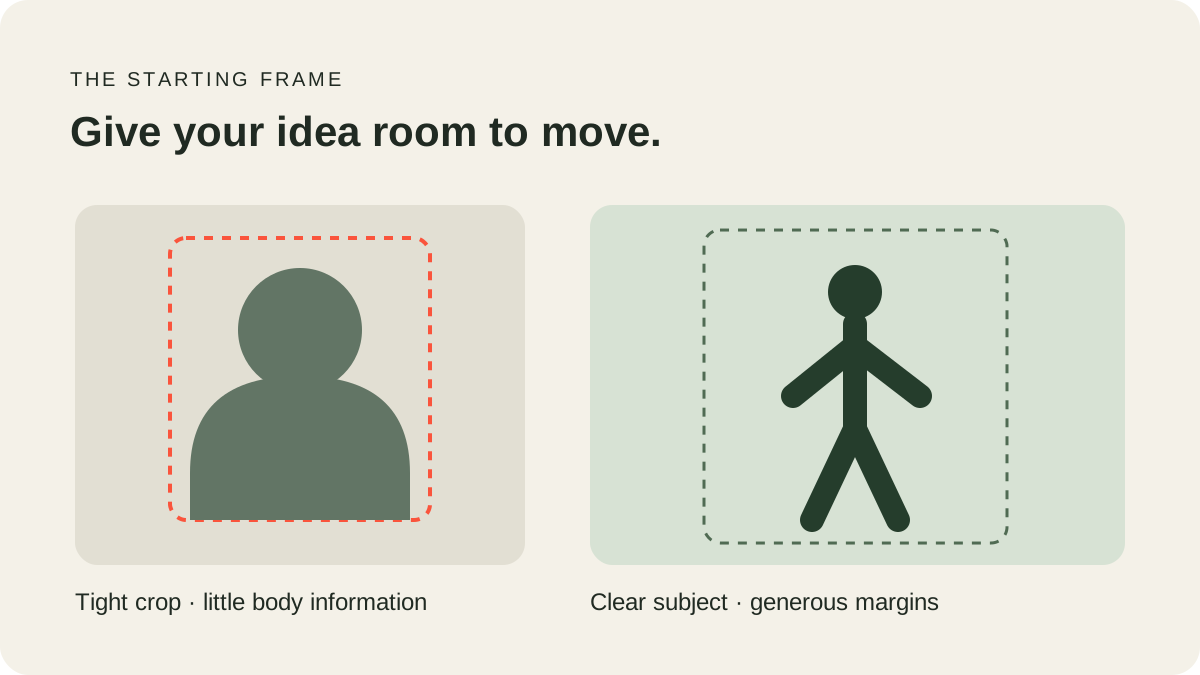
For the close performance, show the face, hair, shoulders and upper-body clothing. A face-only crop leaves the outfit unspecified, while a distant full-body image can make the face difficult to read. A very small subject in a busy scene may be difficult to assess even when the file itself is technically valid. The starting-image checklist helps separate file problems from composition decisions.
The saved image has disappeared
Device drafts last 24 hours in the same browser. A draft can expire, and browser-data deletion, private browsing or another device may leave you without that local file. Select the original image again if necessary.
Account scope also matters. A guest draft is transferred only through explicit sign-in intent. Another account should not inherit your prepared work merely because it opens the same page. Keep your source image outside the browser as a backup; a temporary draft is a convenience, not an archive.
The × in the photo's top-right corner removes the photo from the local draft. It does not delete every uploaded server file or account record. For a deletion request involving account data, use the published contact route and consult the Privacy Policy.
Uploading stalls or reports an error
Read the visible error, check your network and use Retry upload when offered. Give the current upload time to resolve before selecting the same file repeatedly. If you replace an image, inspect the new preview so an older selection is not mistaken for the intended file.
Image selection and server upload are separate steps. During a signed-out preview, you can prepare a local image without having uploaded it into a signed-in account. A preview thumbnail alone does not prove the server has stored the image or submitted a generation.
If the problem persists, contact support with the time, browser, error text and a description of the step. Do not send passwords, keys or private access links. Avoid attaching personal photos until the support process actually needs them.
A future generation is delayed or looks wrong
When public rendering becomes available, inspect the existing task before submitting another. A slow status update is not proof of failure. A new submission can create another separately charged task; it is not automatically a retry of the original.
A confirmed technical failure restores the affected allowance under the published terms. A completed video with an unwanted pose or changed detail is a different case. Review the full output and identify the issue clearly before deciding whether to make another creative variation.
To fix image-to-video problems safely, separate technical recovery from a new creative attempt. Use the walkthrough for preparation and the pricing guide for allowance and refund distinctions.
If you expected a prompt field or reference-video slot, read our no-prompt workflow guide to see exactly which inputs this studio uses.
Use the task state to choose the next action
Match the fix to the stage where problems appear. If no upload has completed, check the image file and upload message. If a task is queued or processing, follow that task rather than changing the source image and submitting another. If the task is complete but the video will not play, investigate playback and download before treating it as a generation failure.
A refresh can make an old page state current, but it does not by itself prove why the earlier state failed. Record the original message if possible, then compare what the account library shows after reconnecting. Avoid drawing a conclusion solely from a generic error toast: it may not identify which step failed, and an existing task can still be present.
For playback, try opening the completed file through its normal download action and playing that saved copy. Check whether the problem affects the preview only or both copies. Note whether video, audio or both stop, and at what time. These observations help distinguish a loading problem from a defect in the delivered media without asking for another generation.
Describe a likeness or sound issue precisely
The current workflow targets approximately 20 seconds at 768P, using your photo and fixed written instructions. The site replaces generated audio with its authorized soundtrack afterward. This does not establish a guaranteed identity or timing match. If a result changes the face, compare it with the actual uploaded photo and identify the first clear moment of drift.
For example, report that hair length changes during a turn, a jacket changes color after an obstruction, or the mouth stops moving while the soundtrack continues. Include the affected time range and task reference. A request for a different pose is a creative preference; an interrupted file or missing delivery is a different kind of issue. Clear descriptions help support apply the relevant recovery or refund process rather than guessing.
Frequently asked questions
Why does Generate video show a validation message?
The button remains labeled Generate video. With an image, a signed-in account and sufficient allowance, it shows a validation notice while public rendering is closed instead of submitting a task. Signing in or buying a pack does not bypass that restriction.
Can I rename HEIC to JPG?
No. Export or convert it to an accepted format; the file contents must match the format.
Does the image thumbnail mean upload succeeded?
No. It can be a local preview. Server upload and task submission have separate states.
Why did my draft expire?
Local drafts last 24 hours and depend on the same browser's stored data.
Should I submit again if progress is unclear?
Check the existing task first when rendering is available. A second submission is a separate request.
What should I send support?
The step, time, browser and error text. Do not send credentials or private access tokens.