Vertical AI Video Framing: Prepare the Right Starting Image
Plan portrait, square or landscape image compositions without a settings menu. Keep the subject, hands and feet readable before animation.
Preview: image preparation and Waffo payments are available. Public video generation remains closed during validation; purchasing does not unlock it.
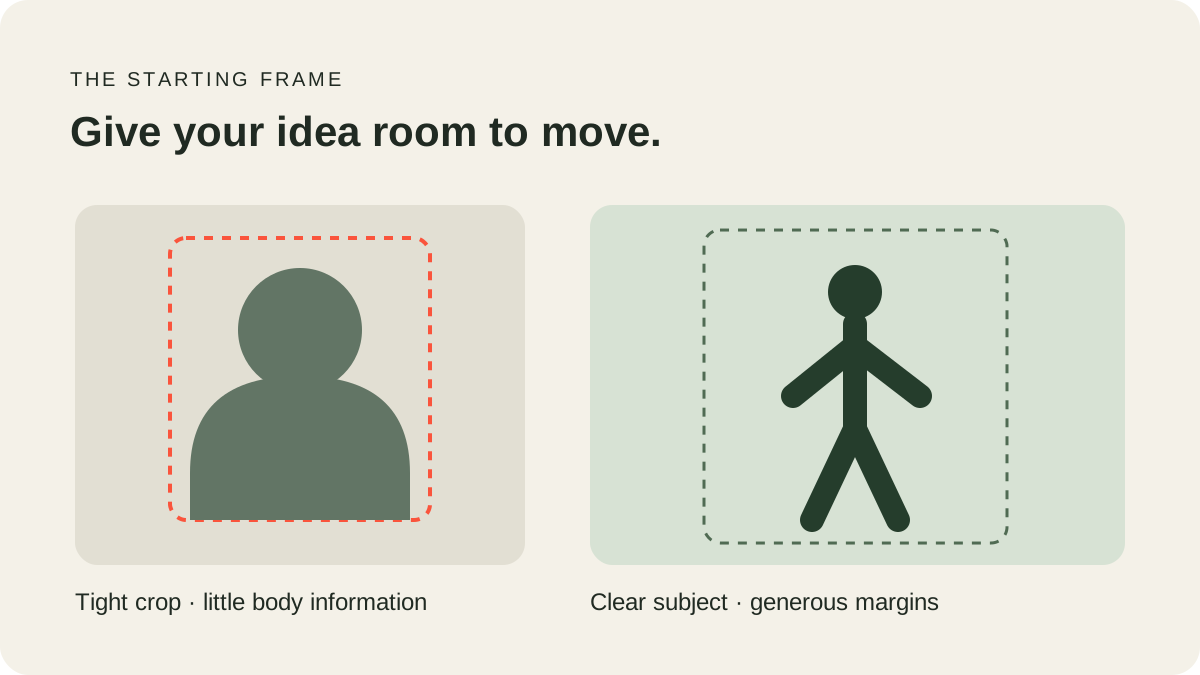
Vertical AI video framing begins with the subject you need viewers to recognize. Choose a portrait that shows the face, hair, clothing and shoulders clearly, and allow room for gestures without relying on the upload thumbnail to predict every final crop.
Vertical AI video framing starts with your photo
Choose the composition first. Let the product handle the settings. The current Bulin 47 Video workflow aims for a vertical close performance, with no separate ratio selector. A clear portrait source makes the subject easier to assess, but source-image proportions do not guarantee matching video dimensions.
This is a preparation guide. The new approximately 20-second, 768P output has not completed acceptance, and public rendering remains closed. Exact delivered dimensions must be checked on the generated file rather than inferred from the thumbnail.
Portrait, square or landscape
A tall portrait image is a sensible starting point when the final project is a vertical social video. A square image can emphasize one centered subject. A landscape image leaves more horizontal room for the setting, but it will not automatically become a tall composition just because you intend to post it to a vertical feed.
Pick the layout you actually want to animate. If you need to crop the image, do so in your photo editor before uploading and keep the original. Cropping is a creative choice: cutting away the feet or hands removes visible information that cannot simply be restored by selecting a different output menu.
Leave room for the full movement
The current workflow requests a close performance with turns and compact hand gestures. Keep room above the head and beside the shoulders and hands. A subject pressed against every edge leaves little visible space for the initial pose to change.
Look for simple separation between the subject and background. Avoid large foreground objects crossing the hands or legs. A clear upper-body figure with a readable outfit is useful for this close performance; feet do not need to be the focus of the photograph.
These choices clarify your input; they do not guarantee perfect anatomy, unchanged clothing or a particular gesture. Watch the whole result when generation becomes available, especially during turns and overlapping limbs.
Plan captions in a later edit
If you expect to add text, leave useful empty space in the image rather than placing tiny words inside it. The current product does not add captions or offer an on-screen text editor. Lettering baked into the starting image may change during motion.
Social platforms can place controls and captions over parts of a video. Preview the actual exported file in the destination's posting interface before publishing, because overlays and crops depend on the app and device. Avoid treating one fixed safe-area diagram as a guarantee across every platform.
Resolution labels are not aspect ratios
A resolution label such as 768P does not by itself tell you whether a file is vertical or horizontal. The aspect ratio describes width relative to height. The workflow fixes the target resolution and requests a vertical composition rather than asking you to configure both.
Do not assume that a small image becomes detailed just because the output target is larger. Use a clear source with enough original detail, meeting the uploader's minimum 256 × 256 dimensions. Refer to the photo guide for format and clarity advice.
Check the preview and the eventual file
Inspect your selected image in the tool. The thumbnail is a preparation aid, not proof of final video dimensions. If the source is wrong, replace it before submitting; keep a copy outside the browser because the local draft lasts only 24 hours.
When a completed video becomes available, check its actual width, height, duration and playback. Then inspect the framing again after captions or sound have been added. Read our video review guide for the final file checks.
For vertical framing, prioritize recognizable facial detail and enough space for the moving hands. A visually busy photo can meet file requirements while still making that composition difficult to judge.
Take the composition into a complete publishing plan with our Bulin 47 AI video guide for TikTok and Reels.
Separate the source crop from the delivery crop
There are several frames to check: the photo you upload, the image thumbnail in the website, the generated video and the destination app's posting preview. They can show different amounts of the scene. A thumbnail may fit a fixed card by cropping its edges; that display choice does not establish what the generator saw or what the downloaded file contains.
Begin with the source file itself. View it without an app's decorative border and check that the hair, shoulders and important clothing are visible. Keep the face large enough to inspect while leaving some breathing room. For this close performance, a distant full-length portrait may sacrifice useful facial detail simply to include shoes that the resulting composition may never show.
After generation, inspect the whole video before deciding on a final crop. Head turns and hand gestures can move closer to the edges than the opening pose suggests. Scrub through the complete clip and choose margins that work during movement, not just while the person is centered. If you add text in another editor, review the text placement through those same moving moments.
Calculate proportions from the actual file
Aspect ratio is width divided by height. A 720-by-1280 frame is 9:16 because both numbers reduce by the same factor; a different pair of dimensions may produce a slightly different proportion. These numbers are an explanation of the arithmetic, not a promised output size for this workflow. Read the width and height reported for your actual saved file when exact delivery specifications matter.
Scaling and cropping are different decisions. Scaling changes the displayed dimensions; cropping removes part of the frame. Stretching a clip to force a new ratio can distort the person, while cropping may cut away a moving hand. If a project needs an exact frame, prepare that final export in an editor, keep the original file and review the edited result for both composition and playback.
The current 20-second, 768P workflow still needs real-output acceptance. A vertical request, an input portrait and a resolution label are useful preparation facts, but none replaces checking the delivered file.
Frequently asked questions
Can I choose 9:16 in the tool?
There is no ratio selector. Prepare a suitable portrait source and check the actual delivered dimensions before a later edit.
Will a landscape image automatically become vertical?
The workflow requests a vertical scene, but a landscape upload is not a reliable way to plan its crop. Use a clear portrait and inspect the result.
Does 768P mean 768 by 768?
No. A resolution label is not a square aspect-ratio promise. Actual new dimensions await output inspection.
Can I add captions here?
No. There is no caption editor in this workflow.
Does a thumbnail crop change the final result?
A displayed thumbnail is not a final framing specification. Review the source image and the actual future output separately.
Should I use a tight face crop for dance?
A clear upper-body composition provides useful facial, clothing and posture information. Exact motion and appearance still vary.