How to Make a Bulin 47 AI Video from One Photo
A practical one-photo walkthrough: choose a strong image, prepare your draft, understand original freestyle motion and review costs before generating.
Preview: image preparation and Waffo payments are available. Public video generation remains closed during validation; purchasing does not unlock it.
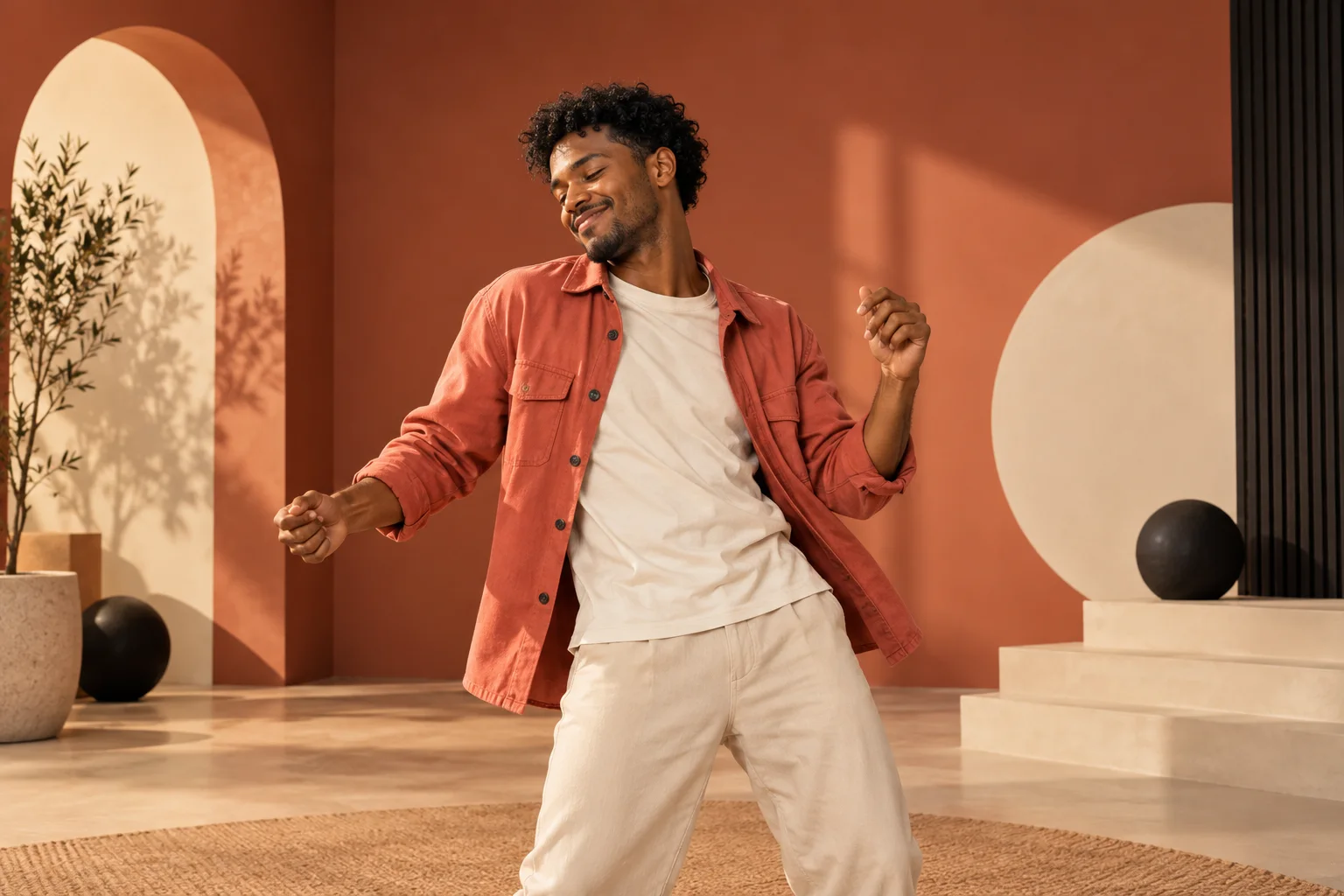
Here is how to make a Bulin 47 AI video from one photo: select a clear portrait, check the upload, confirm current availability, and review the completed result before sharing. The product handles motion instructions and settings; you supply the appearance.
How to make a Bulin 47 AI video step by step
One photo is all you need to start. Bulin 47 Video gives your image a focused creative direction: original upbeat freestyle motion, with the movement and video settings handled for you. There is no blank prompt box, technical settings checklist or reference clip to supply.
The current website lets you prepare an image and keep a device draft. Waffo payments are available, but public generation remains closed during validation; purchasing does not unlock it. The video target is approximately 20 seconds at 768P, with a vertical composition target and actual dimensions checked on the output. This guide explains what you can do now and what to check when rendering becomes available.
Choose one strong starting image
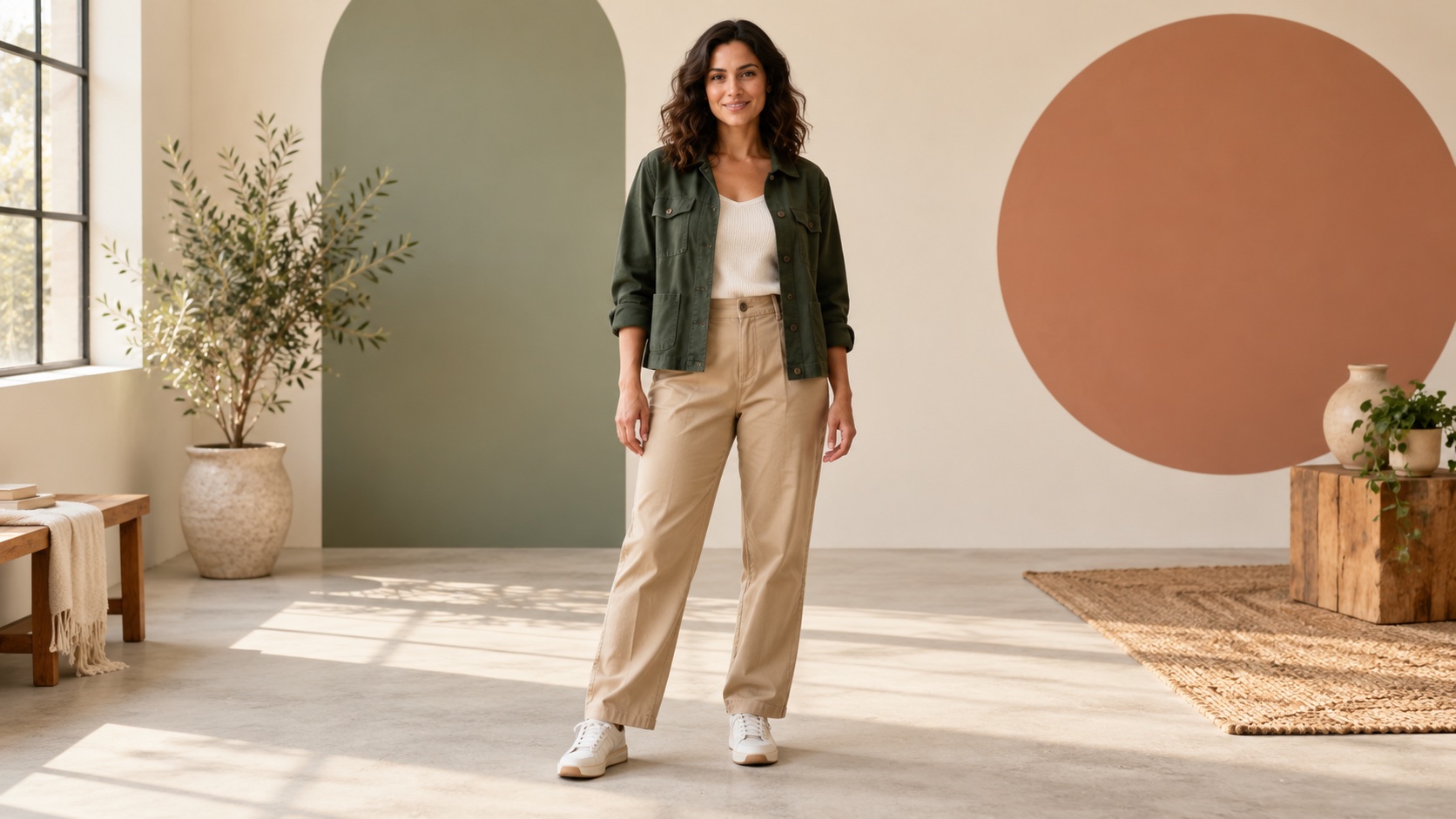
Use one image you own or are authorized to animate. A clearly visible adult subject, readable outfit and simple background give you a stronger starting composition. Original fictional adult characters are welcome. The image starts a new scene; it is not a face pasted into an existing performance.
For the close performance, leave room around the head, shoulders and hands. A tight selfie may show a face clearly but gives little information about clothing. A chest-up or waist-up photograph can show those details without making the face tiny. These are practical composition principles, not a guarantee of a particular AI result.
A phone photo can work as a starting image if the file meets the tool's requirements. Choose an original export rather than a tiny messaging-app thumbnail. Avoid heavy face filters, unreadable shadows and foreground objects crossing the subject. See the photo selection guide for a detailed checklist.
Prepare your image in the tool
- Open the one-image video tool.
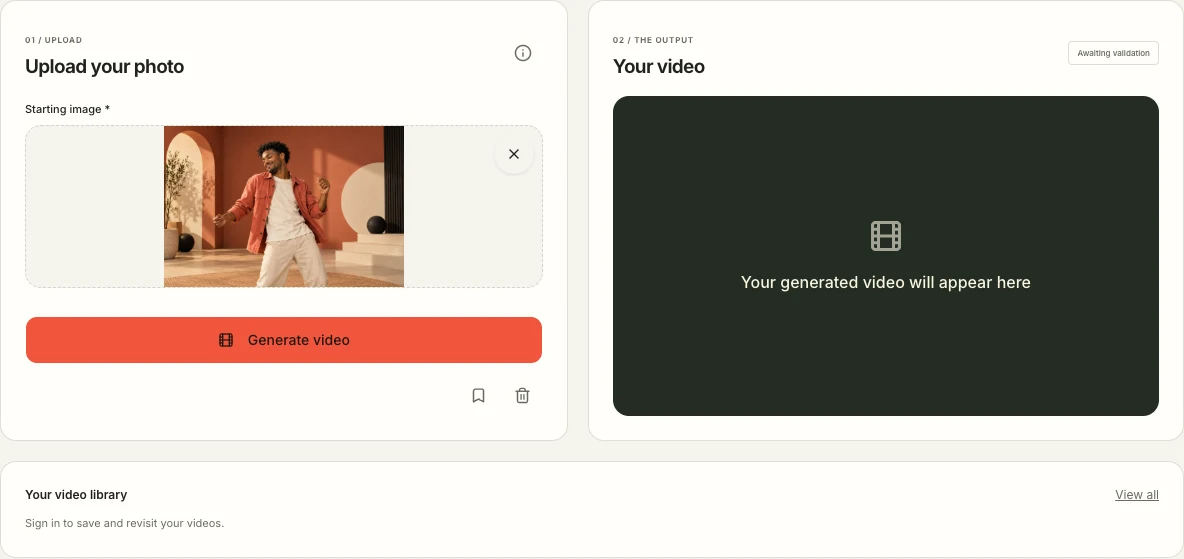
- Select Choose a photo and choose a JPG, opaque PNG or WebP. The minimum image dimensions are 256 × 256 pixels; other file limits are enforced by the uploader.
- Check the displayed thumbnail. Make sure the intended subject and orientation are correct.
- Select the image to choose a replacement. Use the × in the photo's top-right corner to remove it from the local draft.
- Use the information icon for detailed help. It opens on hover or keyboard focus on desktop, and by tapping on a phone.
A prepared image does not start generation or use an allowance. The button is labeled Generate video. With an image, a signed-in account and sufficient allowance, it shows a validation notice while public rendering is closed. Signing in or purchasing does not bypass that restriction.
Let the product handle the motion
The streamlined setup is the advantage. The product supplies written instructions for a close venue scene, compact hand gestures and head turns. Your photograph is the only image input sent to H3. You concentrate on the appearance reference; the site handles the fixed creative setup.
MiniMax H3, an approximately 20-second video target and 768P are fixed for this workflow. Final frame dimensions must be checked on the output. There is no scene picker, custom choreography field, song upload or reference-video upload. Exact appearance, gestures and motion continuity can vary; the current effect still needs owner approval.
If you want a different look, prepare a different starting image. Changing clothes or a background in the image changes the visible starting material; it does not add a new movement mode or a selectable camera setting. Our original video ideas show ways to develop a personal visual direction.
Keep your preparation available
The device draft lasts 24 hours in the same browser. It is useful when you want to check prices or read a guide before returning to the upload. Private browsing, browser-data deletion or moving to another device may mean selecting the image again.
Use the bookmark icon for the explicit sign-in-and-save route. Account work is scoped to the signed-in user; a local guest draft is not automatically transferred merely because another account opens the page. Keep a copy of your original image somewhere you control.
Clearing the local draft is different from deleting uploaded server records or account history. For account or data requests, use Contact and consult the Privacy Policy.
Know the price before your first take
The video packs are clear: one video for $9.90, three for $19.90, or seven for $29.90. The average price falls from $9.90 to approximately $6.63 or $4.27 per video. These are one-time packs, with no automatic renewal and no expiry for purchased video entitlements.
| Videos | Pack total | Per video |
|---|---|---|
| 1 | $9.90 USD | $9.90 |
| 3 | $19.90 USD | ≈ $6.63 |
| 7 | $29.90 USD | ≈ $4.27 |
The lower per-video average requires buying the whole pack. A new completed variation uses another video allowance; a confirmed technical failure restores the affected allowance under the published terms. An allowance restoration is different from a cash refund. Read the pricing explanation and refund policy before payment. Waffo checkout is available, while generation remains in validation.
Review the complete video before sharing
When rendering opens, review the whole result rather than a thumbnail. Check the opening, the face and hands during movement, clothing consistency and the ending. Listen with sound, then inspect the downloaded file on the device where you will use it.
Our workflow does not offer AI face replacement or voice cloning. After video generation, the site replaces H3's generated audio with a fixed authorized original soundtrack. That replacement does not retime the mouth or guarantee matching gestures. Review your image permissions and the complete result. Read the audio guide and video review guide for these checks.
For a compact explanation of the product's strongest setup advantages, explore Bulin 47 AI video without prompts.
Make your AI video preparation and review checklist
Use these checkboxes while preparing your first AI video. They are a temporary reading aid on this page; they do not save to your account or start a generation. Leave the output checks blank until a real completed video is available.
A useful review note names the exact change: “The jacket stays brown, but the face changes during the left turn at six seconds.” Reopen an existing task to check progress; another submission is a new attempt. If you later compare photos, change one factor such as lighting or crop at a time.
Frequently asked questions
Do I have to write a prompt?
No. The product writes the motion instructions. There is no user prompt field.
Can I upload my own reference video?
No. This workflow accepts one starting image only.
Can I select a different duration or resolution?
No. The product fixes the settings. Approximately 20 seconds and 768P are targets; the effect still needs owner approval.
Can I prepare an image without paying?
Yes. Image preparation is available during preview. It is not a free generated-video offer.
Can I use an original illustrated adult character?
Yes, if you have the necessary rights. Stylized details may change during generation; no likeness guarantee is made.
Where do I start?
Prepare your image in the tool. Check the current availability message before expecting a generated video.